
Mouse and keys
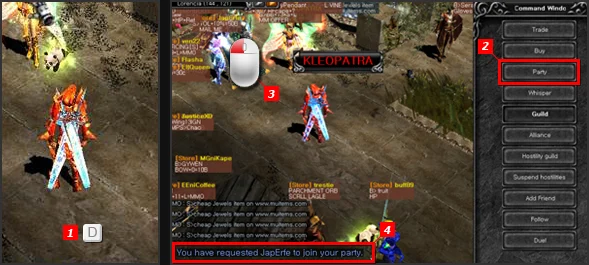

These are the general controls as listed by the community wiki's gameplay guide (an older page, so a few keys may have moved since). Hold Ctrl when you click another player to attack them in PvP.
| Key | What it does |
|---|---|
| Left click | Move, attack, lean or sit down |
| Right click | Use the selected skill or spell |
| Ctrl + click | Attack a player (PK) |
| F1 | Help / play guide |
| F2 | Show or hide dialogue |
| F3 | Turn whisper mode on or off |
| F4 | Change the chat window size |
| F5 / F6 | Show or hide the MUssenger chat window |
| Enter | Open the chat line |
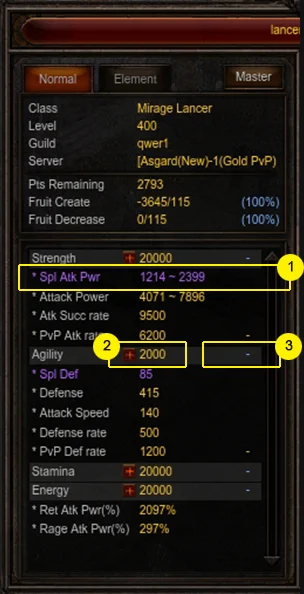
| C | Character information (Shift + C opens the expanded window) |
| I / V | Inventory |
| M | Move to another map (same as /move) |
| D | Command window with actions you can do on a target |
| P | Party window |
| G | Guild menu |
| F | Open MUssenger |
| Shift | Stay in place |
| Alt | Show names of items on the ground (Alt + click picks one item) |
| Space | Pick up items on the ground automatically |
| Print Screen | Take a screenshot |
Potion and skill shortcuts
| Key | What it does |
|---|---|
| Q | Healing potion (default) |
| W | Mana potion (default) |
| E | Antidote / cure potion (default) |
| Ctrl + 1–9 | Bind the skill under the mouse to that number |
| 1–9 | Switch to the skill bound to that number |
| Alt + 1–0 | Send a saved chat message |
The three potion keys can be changed: hover over an item in your inventory, such as a town portal scroll, and press Ctrl plus the letter you want. Only those three letters accept items. To bind a skill, open the skill list at the bottom middle of the screen, hover over a skill and press Ctrl with a number.
Chat macros work the same way: open the chat with Enter, type /1, a space and your message, and the text is saved on number 1. Press Alt and 1 to send it.
Chat and whispers
Press Enter, type and press Enter again: your words show in a bubble that nearby players can read. A whisper is a private talk with one player who can be far away; nobody else can read it, and you can whisper with up to 5 players. The chat line also works as a console for commands. Tab switches between the message box and the name box, a right click on a message copies the sender's name for a whisper, the arrow keys go through your chat history and Page Up / Page Down scroll the window.
| Type before the message | Who reads it |
|---|---|
| ~ | Your party (blue text) |
| @ | Your guild (green text) |
| @@ | Your guild's alliance (bright yellow text) |
| @> | A notice to all guild members (Guild Master only) |
| # | Keeps the message on screen longer |
MUssenger is a separate messenger: you can talk with several players at the same time and keep a friend list that shows who is online.
Slash commands
Type these in the chat line. For commands aimed at a player, point at that player first; the D key opens the same actions as a menu.
| Command | What it does |
|---|---|
| /move <map> | Travel to another map |
| /trade | Start a trade with the player you point at |
| /party | Create a party or invite the player |
| /guild | Ask a Guild Master to let you join |
| /war <guild> | Declare a guild duel |
| /battlesoccer <guild> | Challenge a guild to Battle Soccer |
| /duel | Challenge the player to a duel |
| /request on | off | Allow or block trade and party requests |
| /filter <words> | Only show chat with those words (type /filter alone to stop) |
| /<item name> | Show an item's information (case-sensitive) |
Guilds, parties and trading are covered in more detail in Guilds & Alliances and Trading & Personal Shops.
Emotes
Typing certain words in chat makes your character act them out. Female and male characters play different animations. The older community page counted 22 emotes; a few examples:
| Type | Motion |
|---|---|
| haha / hehe / ^^ | Laugh |
| hello / hi / welcome | Bow |
| bye / goodbye | Wave |
| sorry / ^^; | Scratch head |
| good / nice / wow | Clap |
| sir | Salute |
| victory / win | Victory pose |
| tired / sleepy | Sleepy |
Newer interface keys
An official UI update added a private-store search: in the safe zone of any town, press P (or use the U menu) to look for items other players are selling, and sellers can now set prices in Zen or in jewels. The Private Store Bulletin Board in Loren Market, at (138, 142) and (110, 134), lists the stores too. The same update lets you change the map's transparency with [ and ] and its size with + and -.
Sources
- MU Online Wiki (Fandom): Gameplay
- MU Online official guide: UI Change
- MU Online official guide: Play Guide
- MU Online official guide: Character Information Window
Game pictures: © Webzen Inc. · muonline.webzen.com