Mouse
Your character is moved only with the mouse; the keyboard is for chatting, typing commands, the camera and quick skills. Nobody can jump except the TaeKwon class. The life bars under your character show HP in green and SP in blue.
- Move: left-click a cell; hold the button to keep walking. A cell that is not highlighted, or highlighted red, cannot be reached.
- Attack: over a monster the cursor turns into a sword; click to attack. Hold Ctrl while clicking to keep attacking it.
- Right-click a player for a menu of actions, or an item or skill to read its description.
- Drag and drop items to equip them, put them in the trade or storage window, or drop them; drag skills onto the shortcut bar.
- Shift + right-click a player to follow them automatically until you attack or use a targeted skill. Shift + left-click an item to post a clickable link to it in chat.
- Alt + right-click an item to send it straight to the open storage, cart or trade window. Ctrl + right-click an unidentified item to identify it, if you carry a Magnifier.
Camera
- Rotate: hold the right mouse button and drag left or right; the camera circles around your character.
- Zoom: roll the mouse wheel, or hold Ctrl and the right button and drag up or down.
- Height: hold Shift (with the right button or the wheel) and move up or down; hold Ctrl + Shift to go even lower.
- Reset: double right-click to face north again; Shift + double right-click resets the camera position.
Keyboard shortcuts
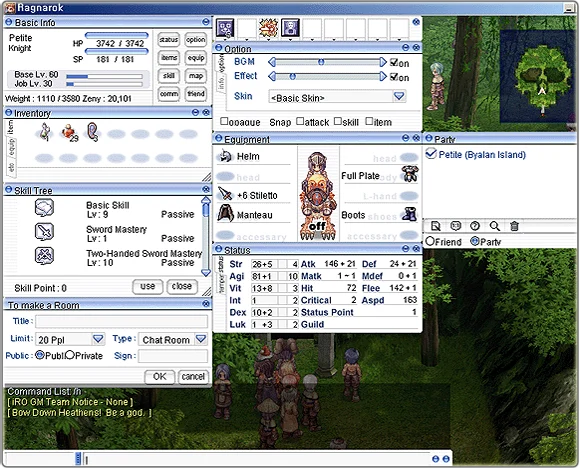
The main windows open with Alt plus a letter. This table lists the most useful shortcuts of the current (Renewal) client; it is shortened.
| Keys | What it does |
|---|---|
| Alt + V | Basic info: name, class, levels and EXP %, HP, SP, weight and Zeny |
| Alt + E | Inventory |
| Alt + Q | Equipment and status |
| Alt + S | Skill window: use, learn and raise skills |
| Alt + W | Cart (Merchant classes or Super Novice with a cart) |
| Alt + U | Quest window |
| Alt + B | Instance window |
| Alt + Z | Party window |
| Alt + G | Guild window |
| Alt + H | Friends list |
| Alt + O | Options: music and sound volume, interface skin |
| Alt + L / Alt + M | Emotes list / macro window |
| Ctrl + ~ | World map with your position and your party's |
| Ctrl + Tab | Mini-map: off, see-through or solid |
| F1–F9 | Use the skills and items on the shortcut bar |
| F10 / Alt + F10 | Change chat window height / show or hide chat |
| F11 | Close all windows except basic info and chat |
| F12 | Switch shortcut bar sets (1, 2, 3, 4, off) |
| Insert | Sit down or stand up |
| Alt + End / Ctrl + End | Show your HP/SP/AP bars / make other players see-through |
| Esc | Menu to quit the game or return to the main menu |
Chat and commands
Type in the chat box and press Enter: everyone near you sees it. Start a message with % (or press Ctrl + Enter) to talk to your party only, and with $ (or press Alt + Enter) for your guild. To whisper someone, put their character name in the small box at the left of the chat bar, or right-click them and open a 1:1 chat. Commands start with a slash; the most handy ones are below (shortened list).
| Command | What it does |
|---|---|
| /where | Show your map name and coordinates |
| /sit, /stand | Sit down or stand up |
| /organize "Name" | Create a party (name up to 23 characters) |
| /invite "Name" | Invite a player to your party, even on another map |
| /leave | Leave your party |
| /guild "Name" | Found a guild (you need an Emperium in your inventory) |
| /memo | Memorize a spot for the Warp Portal skill |
| /noctrl (/nc) | Keep attacking a monster with a single click |
| /battlemode (/bm) | Use the shortcut bars straight from letter keys; press Enter before chatting |
| /str+ 5 | Add 5 status points to STR (works for each stat) |
| /ex Name, /exall, /in Name | Block one player, block all whispers, unblock a player |
| /bv 0–127, /v 0–127 | Music volume, sound effect volume |
| /showshop, /monsterhp | Show or hide vending shops; show monster HP bars |
| /navi map x/y | Set a destination for the navigation system |
Emotes: Alt + L shows the emote list, and in the macro window (Alt + M) you can tie emotes or phrases to Alt + a number key. Rock, paper and scissors have their own keys: Ctrl + =, Ctrl + \ and Ctrl + -. Press Print Screen to save a screenshot as a .jpg in the game's Screenshots folder.
Players, trading and NPCs
Right-click another player to view their equipment (if they made it public), ask for a deal, invite them to your party or guild, open a 1:1 chat, add them as a friend, send them mail, or block their messages.
- Trading: right-click the player and request a deal. Once they accept, drag items into the trade window or type an amount of Zeny, then press OK. When both sides are ready, press Trade to finish, or cancel with the button on the right.
- Parties: when you create a party you set who may pick up items (each player, or anyone in the party) and how picked-up items are split (kept by the finder, or handed out at random). The official guide notes these settings can only be changed by disbanding and remaking the party. See Parties and Friends.
- NPCs: left-click an NPC to talk. Some show a picture, a dialogue box and a list of answers. You cannot move while talking, and walking when a dialogue opens can disconnect you. Kafra employees offer storage, cart rental, teleports and save points (Kafra Services and Travel); town guards point you to important places.
For selling to many players at once, Merchant classes can open shops; see Trading, Vending and Zeny.
Sources
- iRO Wiki: Basic Game Control
- iRO Wiki Classic: Basic Game Control
- Ragnarok Online official game guide: Basic Interface
- Ragnarok Online official game guide: Emoticons
- Ragnarok Online official game guide: Keyboard Shortcuts
- Ragnarok Online official game guide: Commands
- Ragnarok Online official game guide: Camera Controls
- Ragnarok Online official game guide: Moving and Chatting
- Ragnarok Online official game guide: Attack Strategies
- Ragnarok Online official game guide: Trading Items
- Ragnarok Online official game guide: Party Play
Game pictures: © Gravity Co., Ltd. · playragnarok.com